The short answer
There are four ways to put a podcast on YouTube:
- Import your RSS feed in YouTube Studio. Free and automatic, but every episode becomes one still image for the whole runtime.
- Upload a still-image video yourself. Same result as the RSS import, with more manual work.
- Film the show. Cameras, lighting and an editor for every episode.
- Turn the audio into a real video. An AI tool builds visuals, captions and chapters from the recording you already have.
If you record audio only, the fourth option is the only one that gives YouTube something worth watching without a camera. The rest of this guide explains each one, what it costs you, and the exact settings that help an episode get found.
Why YouTube is worth the trouble
YouTube is now where a large share of podcast listening happens. It passed one billion monthly podcast viewers in 2025 (Podbean's video podcast statistics). Castos reports that 84% of Gen Z listeners discover podcasts on YouTube (Castos).
Apple Podcasts and Spotify mostly serve people who already know your show's name. YouTube is different: it recommends episodes to people who have never heard of you. That makes it the best discovery channel a podcast has.
But YouTube only recommends what people keep watching. That one fact decides which of the four methods is worth your time.
Method 1: Import your RSS feed in YouTube Studio
Your RSS feed is the link your podcast host gives you, the one Apple and Spotify read to get your episodes. YouTube can read it too.
How to do it:
- Open YouTube Studio and sign in to your channel.
- Click Content in the left menu, then the Podcasts tab.
- Click Create, then New podcast, then choose to submit an RSS feed.
- Paste your feed URL. YouTube emails a code to the address in your feed. Enter it to prove the show is yours.
- Choose whether to import past episodes or only new ones.
What you get: YouTube's own help page says it will use your podcast's show art to create a static-image video for each episode (YouTube Help). New episodes upload by themselves.
The catches:
- No ads in the audio. YouTube says podcast content delivered by RSS cannot contain advertisements. Host-read sponsor spots are allowed if you declare them. Ads your host inserts automatically usually have to go.
- It is a still image. Castos reports that static-image podcast uploads lose 90 to 95% of their audience in the first 90 seconds. When NPR added real footage to its Life Kit show, views went from an average of 179 per episode to about 3,000, a 16x jump (Castos).
- Not everywhere. RSS delivery is only offered in some countries and regions.
Best for: getting your back catalogue listed in YouTube Music with zero effort. Not for growth.
Method 2: Upload a still-image video yourself
This is the old way. You put your cover art and the MP3 together in a free tool or video editor, export an MP4, and upload it like any video.
It gives you more control than the RSS import (your own title, thumbnail and description per episode), but the viewer still sees one picture for 45 minutes. The retention problem is exactly the same. If you are doing this today, our guide on turning an MP3 into a YouTube video shows what to do instead.
Method 3: Film the show
A true video podcast, with cameras on the hosts, is what the biggest shows on YouTube do. It works. It also costs:
- Two or three cameras, lights and a room that looks good on screen
- A remote recording tool if guests join from home
- An editor to cut the angles together, often 4 to 8 hours per episode
If you already have the budget and the team, film it. If your show is recorded over a call, or you simply do not want to be on camera, read on. (Not showing your face is a real format now. See our guide to starting a faceless video podcast.)
Method 4: Turn your audio into a real video with AI
This is the newest option, and the one built for audio-first podcasters. You give the tool your finished episode. It listens to it, then builds a video around what is being said: footage and images that match the topic, captions timed to each word, chapter markers and a thumbnail.
The result is a video that changes on screen as the conversation moves, which is what keeps people watching. Here is how that works in Podeo.ai, step by step.
Step 1: Find your show or upload the file
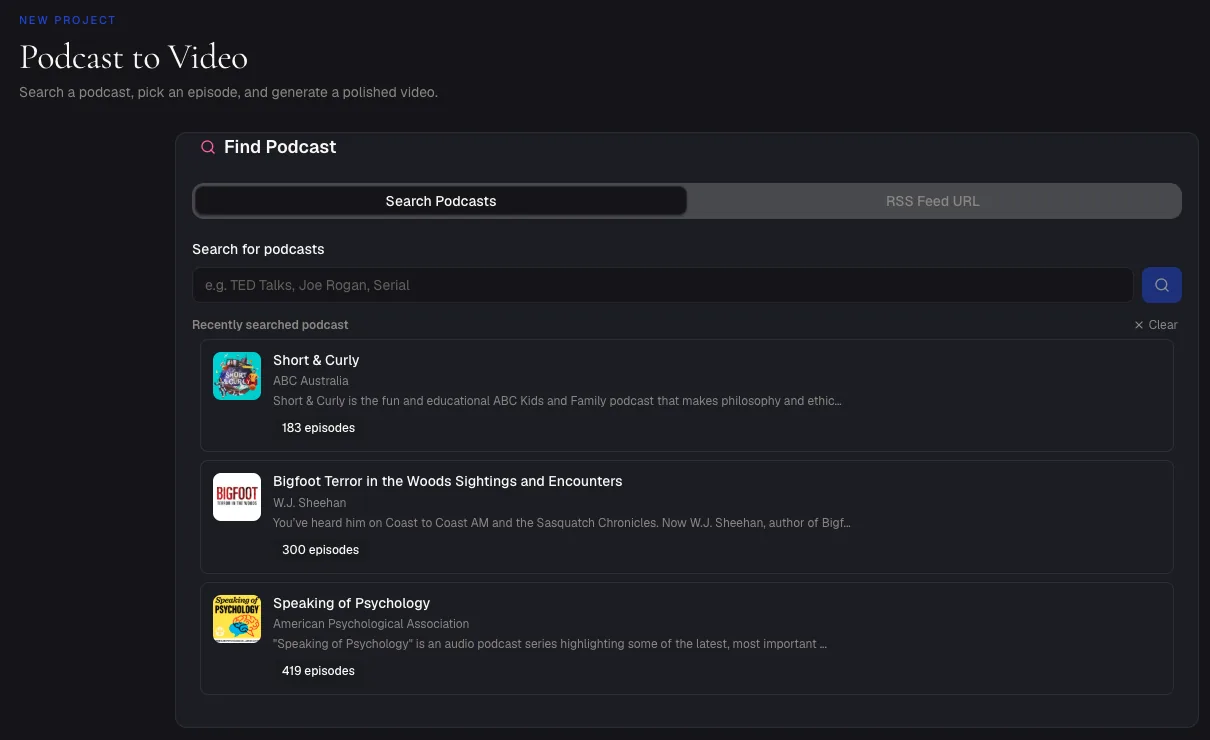
Search for your podcast by name or paste its RSS feed URL, then pick the episode. If you have the file on your computer instead, use audio to video and drop in an MP3, WAV, FLAC, AAC or M4A.
Step 2: Pick the shape and generate
Choose landscape for a normal YouTube upload (portrait and square are there for Shorts and social). Click Generate Video.
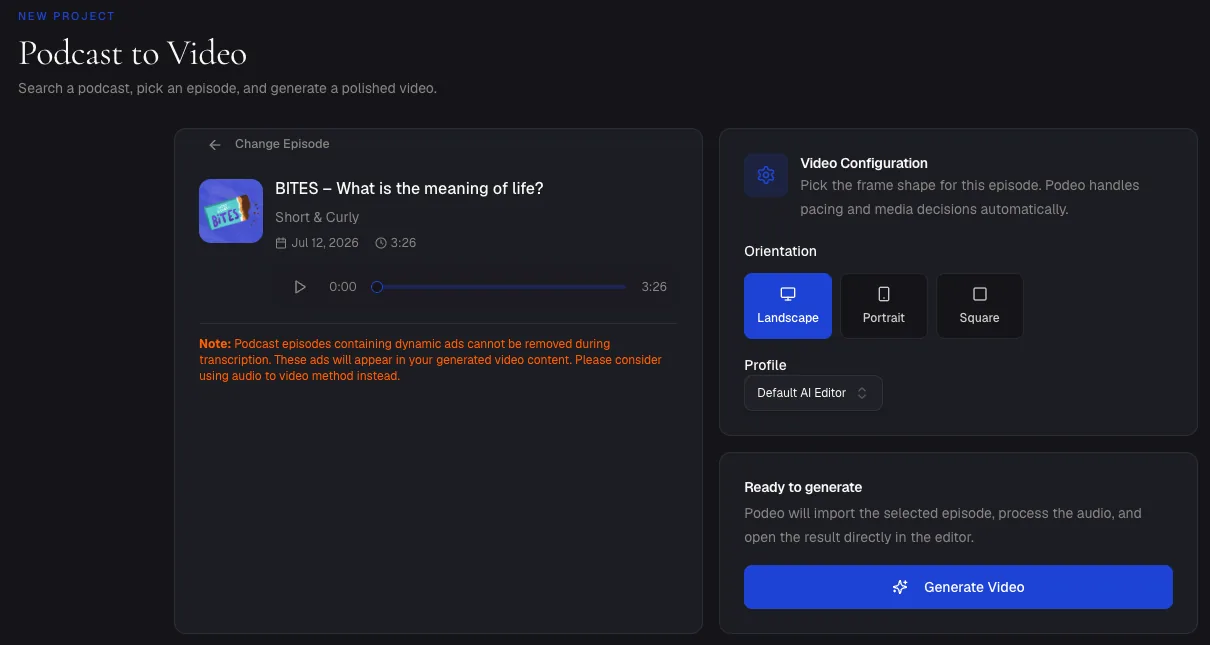
That warning matters on YouTube. If your host stitches ads into the feed, they end up in the video too. Upload the clean master file instead and you avoid the problem completely.
Step 3: Let Podeo Director build the edit
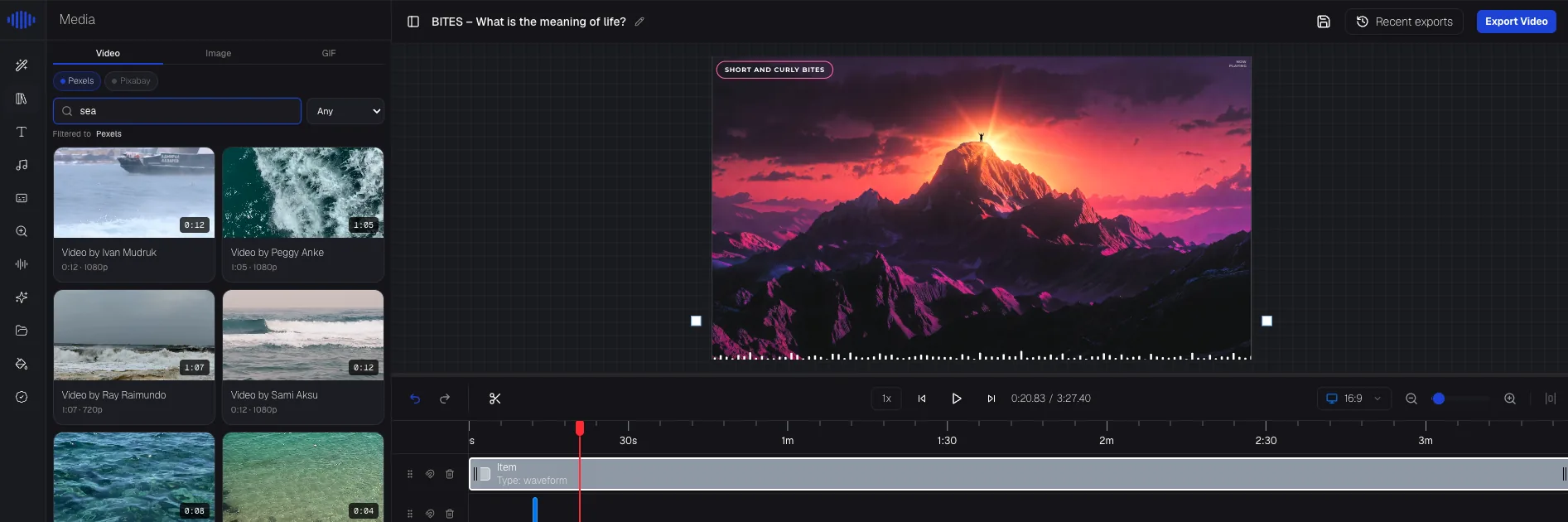
Podeo Director reads the structure of the conversation: where the intro ends, where the topic changes, where the episode lands. It then places matching footage and images, captions and chapter cards along that structure. A typical episode is ready in about 20 minutes.
Everything it builds sits on a normal editing timeline, so you can change any shot. Or skip the timeline and edit by chat: type "use a wider shot of the city at 12:40" and it happens.
Step 4: Publish straight to YouTube
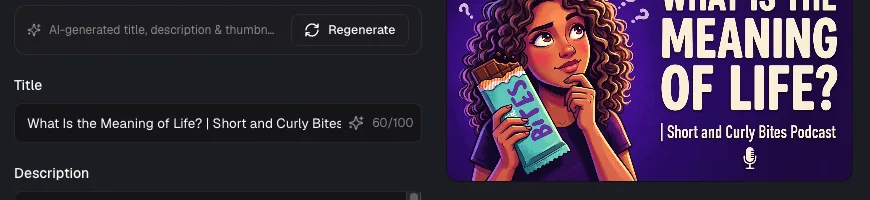
Podeo.ai writes the YouTube title, description, tags and a custom thumbnail from the episode itself. Pick your channel and playlist, check the text, and publish.
The four methods side by side
| RSS import | Still-image upload | Filmed show | AI video from audio | |
|---|---|---|---|---|
| Needs a camera | No | No | Yes | No |
| Work per episode | None | 30 to 60 min | 4 to 8 hours | About 20 min, mostly waiting |
| What viewers see | One still image | One still image | Real footage | Footage, images, captions |
| Custom title and thumbnail | No | Yes | Yes | Yes, written for you |
| Chapters | Only if in your notes | By hand | By hand | Automatic |
| Good for YouTube growth | Weak | Weak | Strong | Strong |
Make YouTube treat it as a podcast
Whichever method you choose, do this once so YouTube knows your uploads are a podcast. It is what gets you onto the Podcasts tab and into YouTube Music.
- In YouTube Studio, go to Content, then Podcasts.
- Click Create, then New podcast. Or choose an existing playlist and mark it as a podcast.
- Give it the show's name, a description, and a square cover image.
- Add every episode video to that playlist.
The settings that get an episode found
A good video still needs YouTube to understand it. Check these on every upload:
- Verify your channel first. Uploads longer than 15 minutes and custom thumbnails both need a verified account. It is a one-time phone check in YouTube Studio settings.
- Put the topic before the show name in the title. People search for what the episode is about, not what your show is called. "How to Price Freelance Work | The Studio Hours Podcast" beats "The Studio Hours Podcast Ep. 112".
- Add chapters. Put timestamps in the description. The first must be
00:00, you need at least three, and each chapter must be 10 seconds or longer. Chapters show up in search results and help people jump to the part they came for. - Upload captions. Captions make the episode searchable by what was said and watchable with the sound off.
- Use a custom thumbnail at 1280 x 720. Your square podcast cover will not fill the frame.
- Write the first two lines of the description for humans. They show before "more". Say what the listener will learn.
Podeo.ai does the chapters, captions, title, description and thumbnail for you, and our show notes generator covers the rest of the writing.
Frequently asked questions
Can I put an audio-only podcast on YouTube?
Yes. You can import your RSS feed in YouTube Studio or upload a video you made from the audio. YouTube does not require a camera. But an audio-only upload shows a still image, and most viewers leave within the first minute and a half. Turning the audio into a real video fixes that.
Is it free to put a podcast on YouTube?
The RSS import and manual uploads are free. You only pay if you film the show or use a tool to make the video. Podeo.ai has a free trial for episodes up to 5 minutes, and paid plans from $49 a month.
Should I upload full episodes or clips?
Both, if you can. Full episodes build watch time and show up in search. Short clips reach new people through Shorts. Start with full episodes, since that is where your listeners go to watch the whole show. Podeo.ai makes full episodes today; automatic clips are on the way.
Why are my podcast episodes not getting views on YouTube?
Usually one of three reasons: a still image that loses viewers early, a title that names the show but not the topic, or no chapters. We go through each fix in why your podcast isn't growing on YouTube.
Get your first episode up this week
Pick the one episode you are proudest of. Start free on Podeo.ai, upload it, and publish the video to your channel. You will know within a week whether YouTube viewers stay with a real video in a way they never did with a still image.